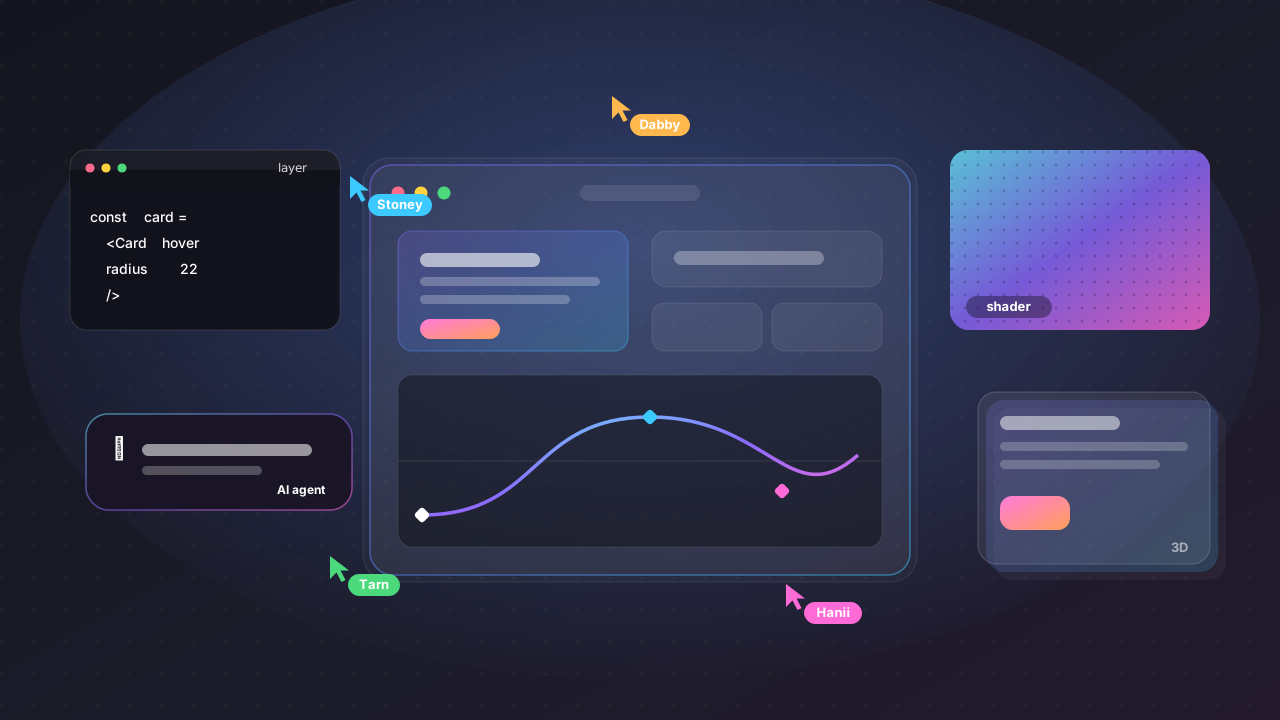
After watching and reading through the recaps from this year's Config, my first feeling was that Figma is no longer trying to be just a “UI tool” — it's expanding itself into a real product team's central workspace.
Not just a designer opening a file, placing frames, building a prototype and handing it to dev — but a place where code, motion, visual effects, AI workflows, plugins and assets can all live on one canvas.
“No tool should limit where an idea can go.”
— Figma, Config 2026In plain working terms: an idea shouldn't be limited because the tool can't reach it yet. And this year's Config feels like a statement that, going forward, the canvas won't just be where you store screens — it's where you test ideas closer and closer to the real thing.
This year's core idea: new materials on the canvas
Figma announced a lot this year, but the simplest way to summarise it is this: Figma is adding new “materials” to the canvas.
We used to have frames, text, components, images and vectors. Now Figma is bringing code, motion, depth, texture, shaders, AI-generated tools and reusable workflows into the same file.
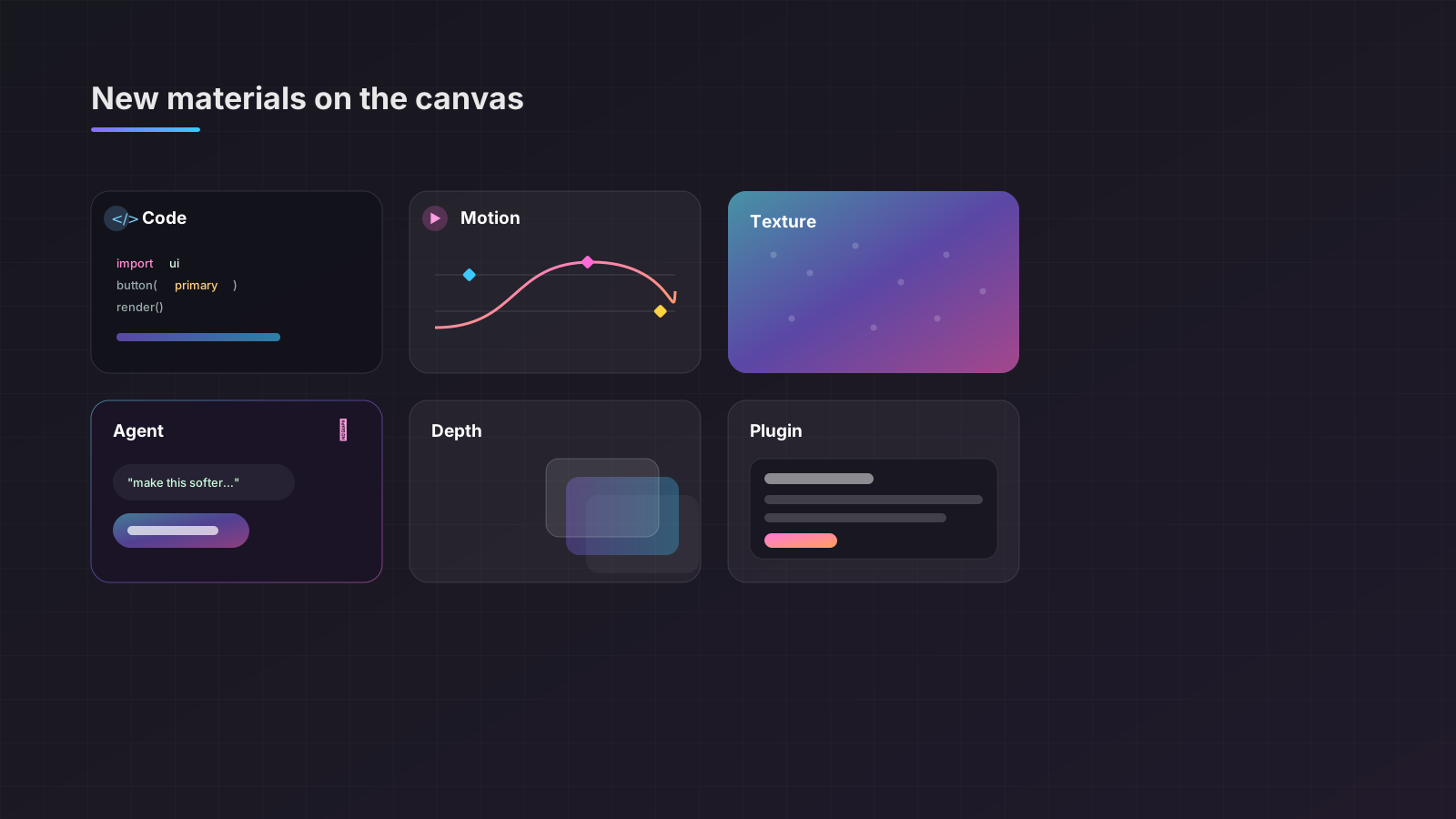
In short, the canvas is starting to be less of a still image and more of a place to “think → try → adjust → code → hand off” all in one spot.
01Code Layers: code becomes a layer in Figma
This is probably the biggest feature from a product-team angle.
“Code is material.”
— Figma, Config 2026It feels like a deliberate shift in how designers and developers think. We've long talked about design vs code as if they're separate worlds, but Figma sees code as a material — like an image, a vector, or a design layer.
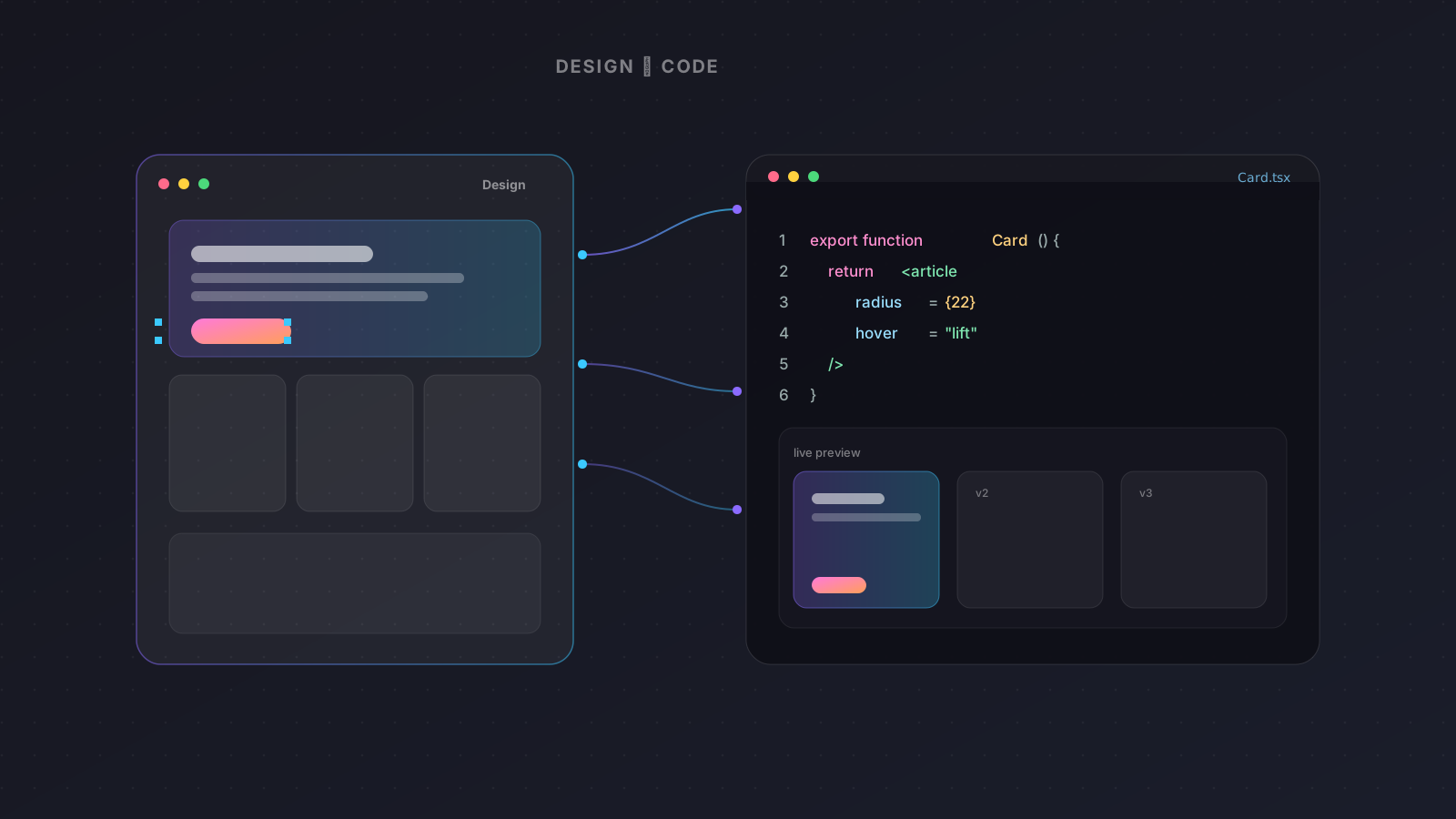
Code Layers let you bring code onto the canvas several ways: generate from an existing frame, have the agent generate it, clone a repo from GitHub, or upload a local codebase. Then you can lay out interactions, flows or several directions side by side.
What's especially interesting is that a designer can duplicate a code layer to compare directions, just like duplicating a normal frame — and if you want to edit it visually, you can extract the code back into a design layer, then update it back to the code layer afterwards.
Personally, I don't think this means designers must instantly become devs. It brings “what we imagine” and “what can actually be built” closer together, especially for interaction-heavy work like dashboards, CRMs, internal tools, AI products, or flows that a plain prototype can't quite convey.
02Figma Motion: at last, a real timeline in Figma
Another genuinely exciting feature is Figma Motion.
Before, for good motion we'd reach for Principle, After Effects, Rive, or some prototype workaround inside Figma. This time Figma adds a timeline, keyframes, presets, easing, spring animation and animated components right into Figma Design.
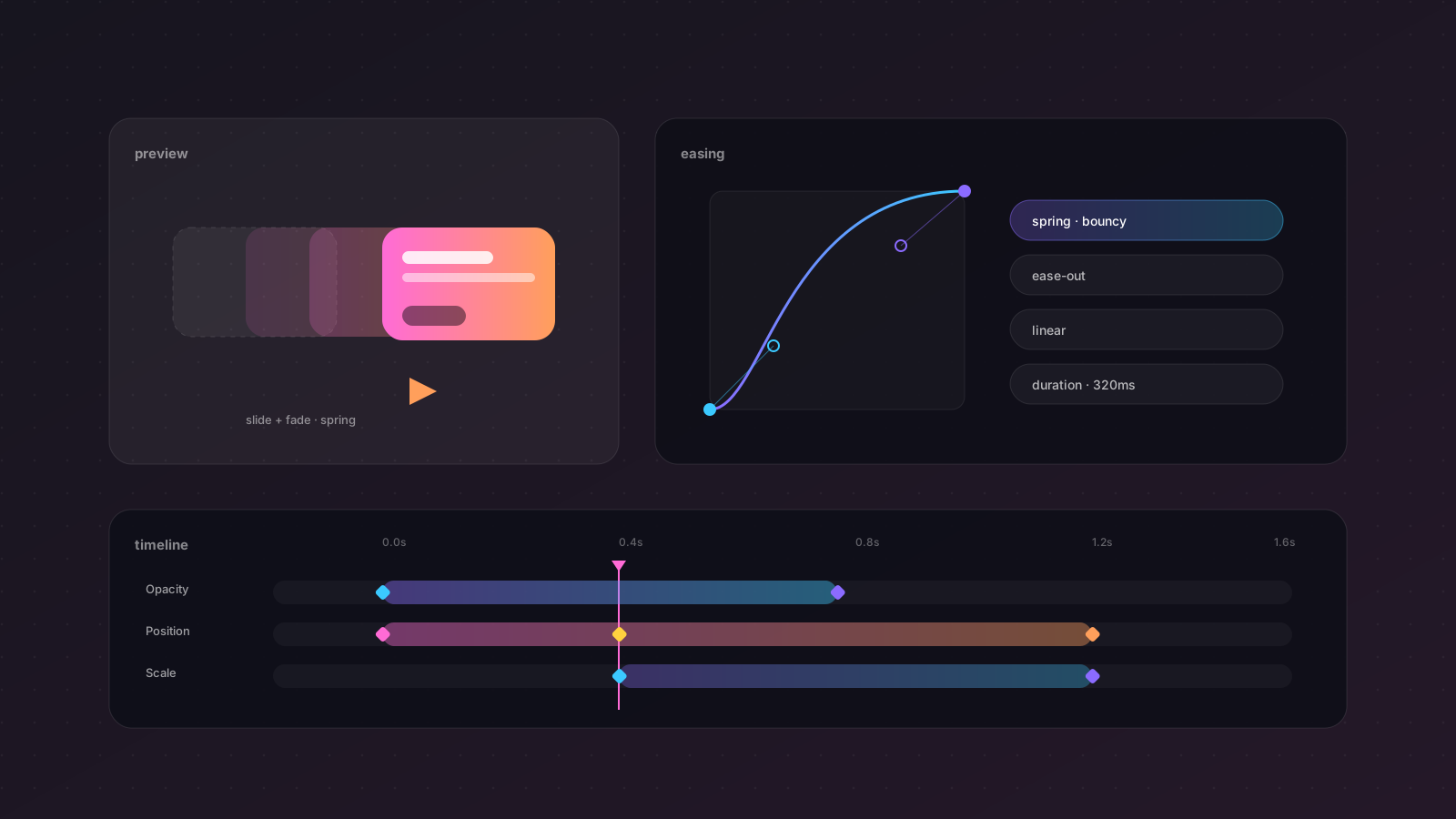
The point isn't just “you can make animations” — it's that motion can become part of the design system.
Think buttons, cards, onboarding, transitions, loading states or micro-interactions you want the whole product to share at the same speed and feel.
You may no longer have to describe it as “make it move softly” or “a gentle bounce,” because dev can inspect the timeline in Dev Mode and copy the code out as CSS, JSON or React.
For UX/UI people this matters a lot, because motion isn't just decoration — it's feedback, hierarchy, flow and the feel of a product.
Does the user know the system received their tap when they press?
Do they get lost when the screen changes?
Does the loading state look trustworthy?
Or does this interaction make the product feel faster and clearer — or just prettier?
033D Transforms: depth that's more than just tilting an image
Figma also talked about 3D transforms — you can rotate frames, vectors and text on the z-axis, with a live preview, and it stays editable.
What's interesting is that it exports to CSS and connects through MCP, so what you see in spatial design has a better chance of becoming real implementation.
This may not be essential for every enterprise or CRM job, but it suits landing pages, product storytelling, mobile onboarding, campaigns or portfolios that want some depth — without bouncing between several separate visual tools.
04Shaders: texture and visual effects you can prompt
Shaders are really interesting from a visual designer's angle.
Shaders usually sound very technical, but Figma lets a designer prompt the effect they want, or use an image as a reference, and have the agent create shader fills / effects for them.
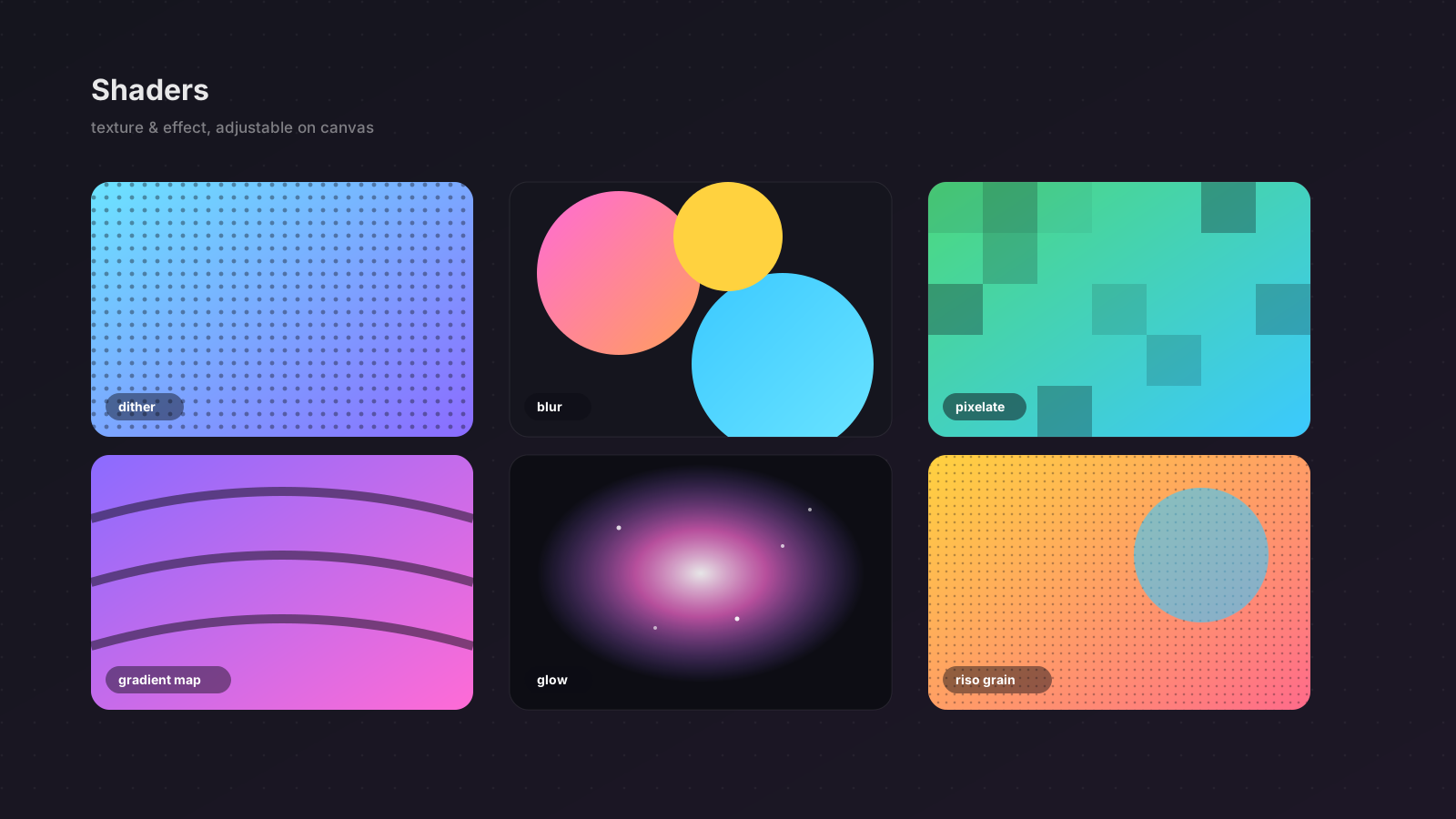
Some effects mentioned include dither, pixelate, blur, gradient map, riso print and luminance particles.
The nice part is that shaders aren't a flat image slapped on top — they have parameters you can adjust on the canvas, more like a native Figma property.
In real work this helps a lot with moodboards, landing pages, visual direction, campaign graphics, presentation covers or portfolios — especially work that wants texture / depth / personality without hopping between tools.
05Generative Plugins: want a certain plugin? Have the agent build it
This one should please people working in big files.
Generative Plugins means telling the Figma agent what tool you want, and having it build a plugin you can use in the file right away — without setting up a dev environment or knowing the Figma plugin API yourself.
Practical examples include:
- spacing several selections evenly
- sorting layers by a condition
- find / replace on text or colour
- arranging assets into a layout
- checking some consistency in the file
This is very interesting for designers doing repetitive work in a design system, deck, social template or a client file with dozens of pages, because it shifts “fixing everything by hand” to “building a small tool to do the repetition for you.”
06Figma Weave: image and asset workflows move closer to the canvas
Figma Weave is the generative-AI workflow side for visual work — image, video, animation, motion design and VFX.
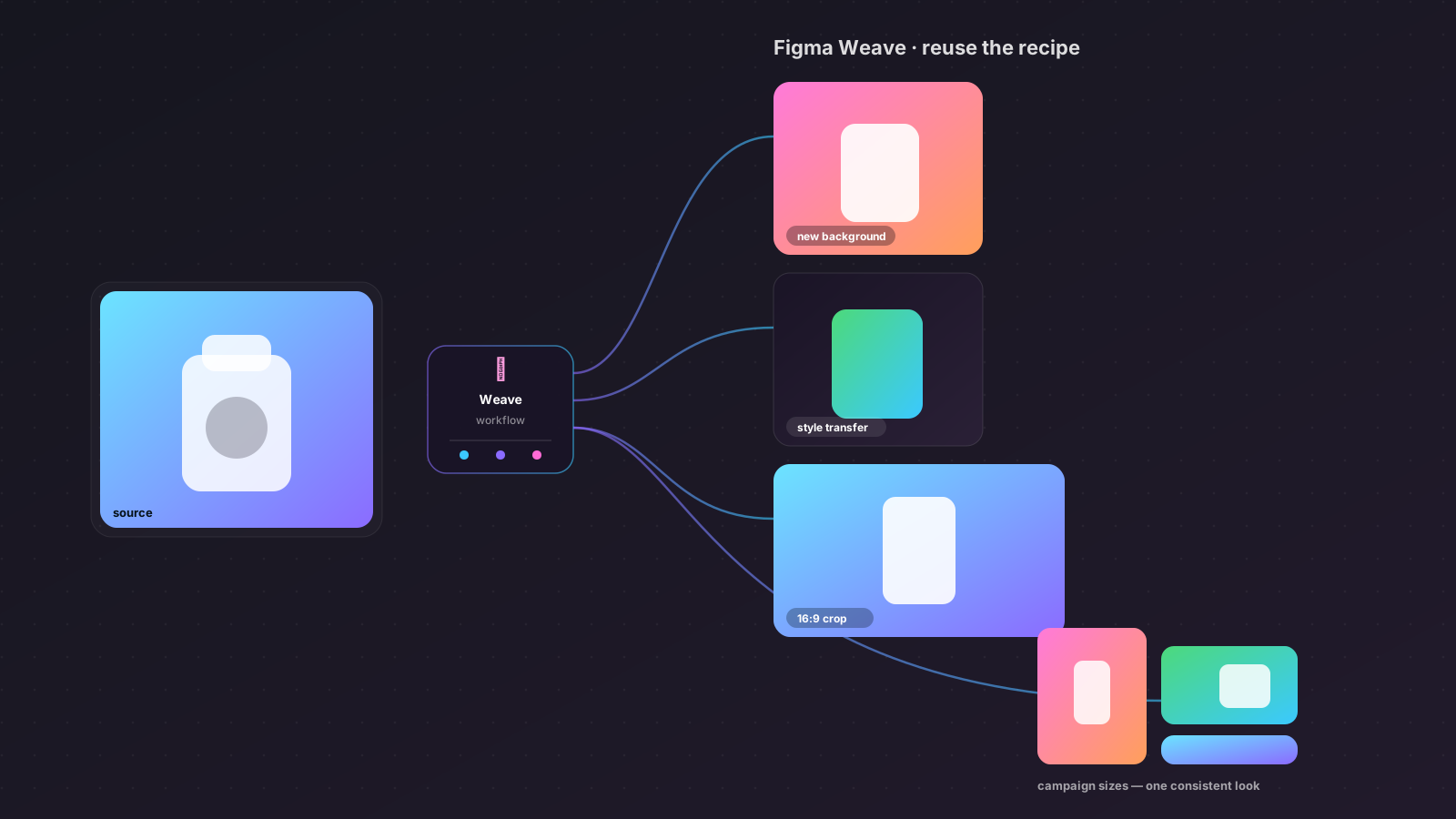
The announcement is that Weave tools are starting to land inside Figma Design, so you can do some asset work without leaving the file — replace a background, put a logo on a product, change aspect ratio, style transfer, or make visual variations that need consistency.
What's interesting is that Weave doesn't think one-prompt-and-done — it thinks in reusable workflows, like shaping an image-making process you can reuse or share with the team.
For real work this suits anyone doing presentations, campaigns, product mockups, social content or in-product illustrations, because we often don't want an image that's “pretty once” but one that holds a direction repeatedly.
07Figma Agent: from AI that generates to AI that knows more context
This round, Figma Agent is pushed hard.
It's not just typing a prompt to generate UI — you can give it more context: custom skills, web search, MCP connectors, and attaching files like a Figma file, image, text, code, PDF or spreadsheet into the prompt.
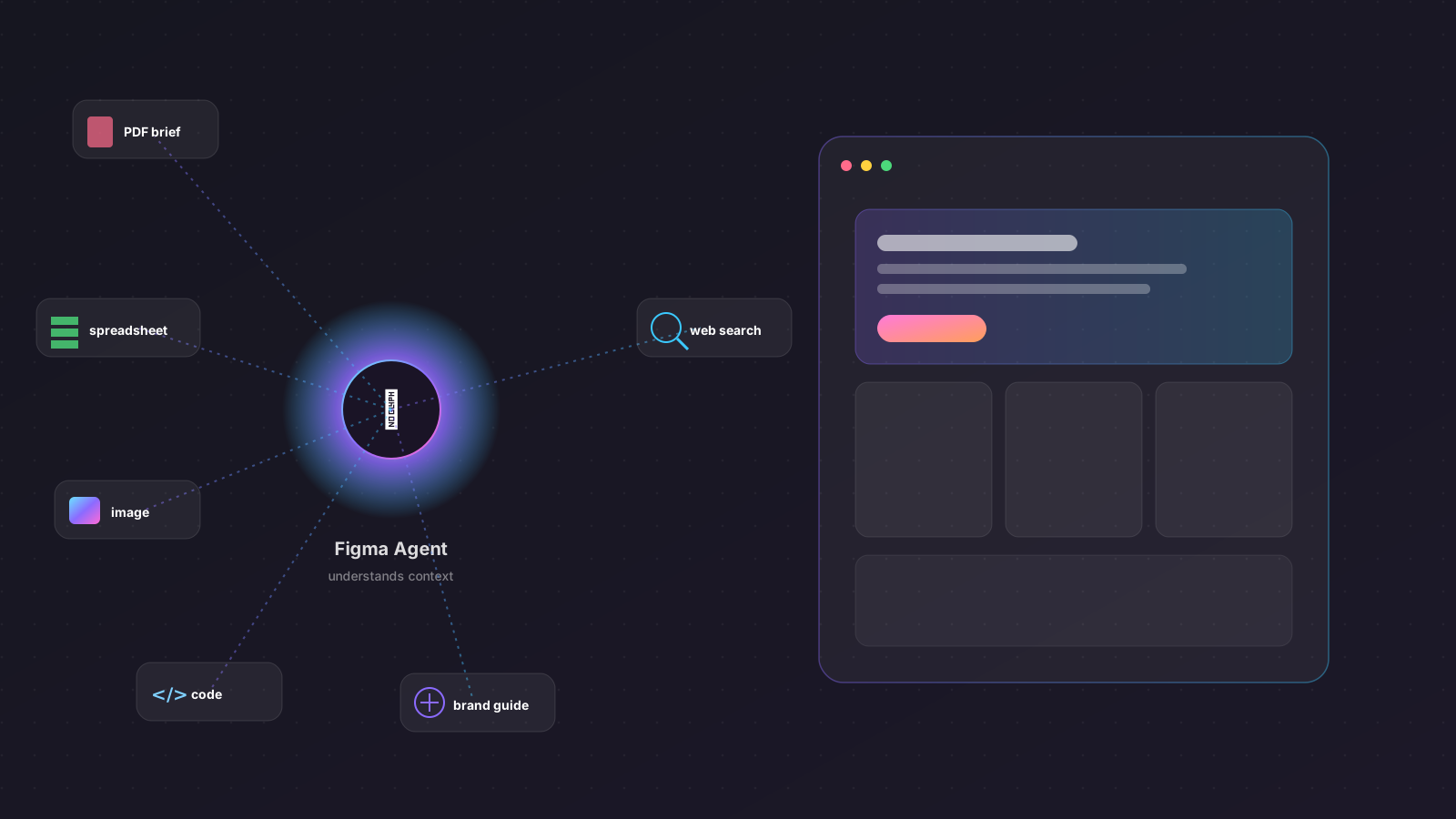
That means you can help the agent understand a brief, research, guidelines, brand tone, component conventions or context from other tools — instead of guessing from a short prompt alone.
From a designer's view this matters a lot, because the problem with AI design usually isn't that it can't draw — it's that it draws without understanding the real context.
It doesn't understand the client.
It doesn't understand the constraints.
It doesn't understand how our team uses this component.
It doesn't understand why this flow has to be in this order.
As Figma gives the agent more context, it may help with things like generating variations, remixing designs, bulk-editing decks, summarising feedback, checking accessibility, or producing a faster starting point.
But there's something to watch for in client work: from 23 Jun 2026 onward, new conversation threads with the agent in Figma Design are visible by default.
That means people in the org/team who are Full seats with edit access to that file can see the thread, unless you set it private. So for client files, confidential work, or anything with internal company data, be more careful when chatting with the agent in a file.
08Agent in FigJam and Figma Slides
Figma also says the agent will come to FigJam and Figma Slides.
For FigJam it should help generate boards, diagrams, workshop structures or flow ideas; for Figma Slides it should help draft decks, bulk-edit, adjust content, or arrange a presentation from starting data more quickly.
This may look less flashy than Code Layers or Motion, but for real work it'll probably get used a lot, because designers don't only do UI — they're always making briefs, decks, workshops, reports, handoffs and presentations.
The big picture: Figma is shifting from a design tool to a product workspace
If I had to sum up Config 2026 in one sentence, I'd say Figma is turning the canvas into more of a product workspace.
We used to make UI to “explain” how the real thing should be. Now Figma is moving toward work where you can “test part of the real thing” right inside the file.
motion can move
code can run
shaders can be tuned
plugins can be built
the agent understands more context
Weave handles asset workflows
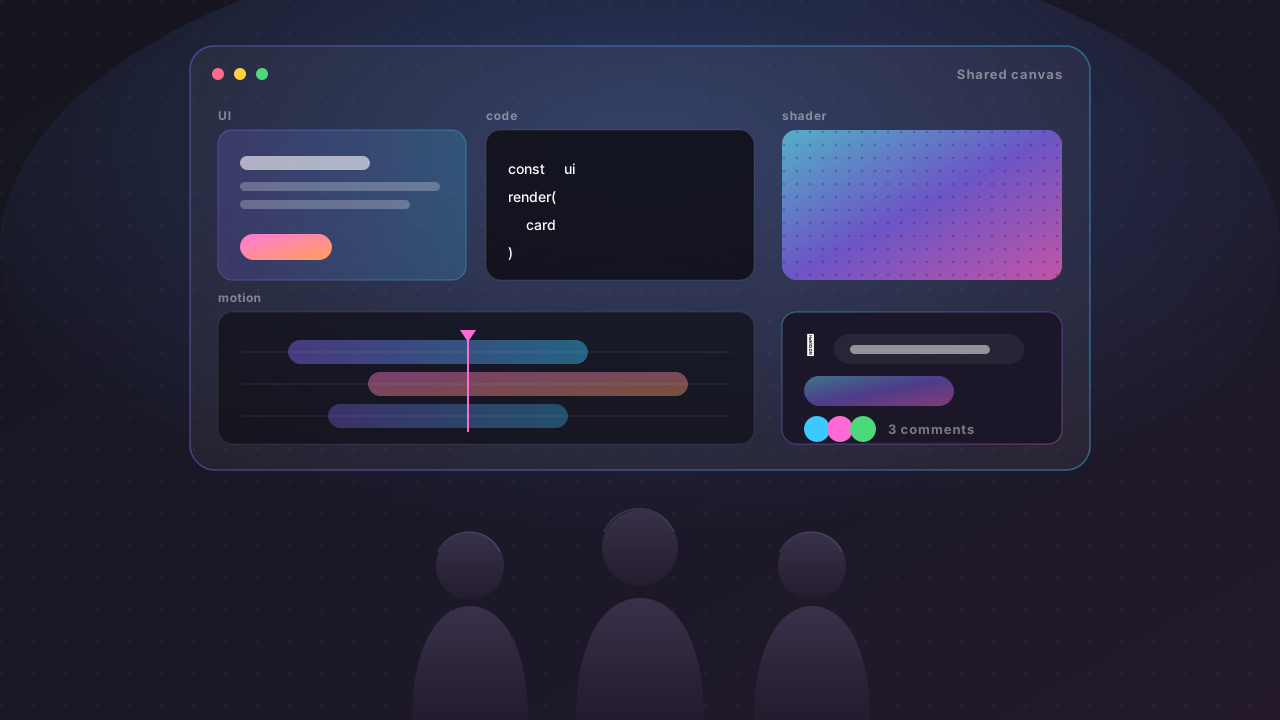
and the team can comment / compare / iterate on one canvas
“Designers, creatives, builders: You will raise the ceiling.”
— Dylan Field, Config 2026It feels less like Figma saying AI will replace creative people, and more like saying AI may reduce friction — while the ceiling of the work still has to be pushed by people with taste, judgment and real understanding.
So what should designers look at first?
- Start with Figma Motion — for most designers, usable right away on prototypes, interactions, onboarding, loading, transitions and handoff.
- Watch Code Layers — if you work closely with dev or build interaction-heavy products, it could genuinely change how design and dev talk.
- Try Shaders and Weave — if you often do visuals / decks / social / landing pages, they add character and cut time on asset variations.
- Look at Generative Plugins — for big files, repetitive work, design systems, or many-page decks, a small helper that saves a lot of time.
- Use Figma Agent with discipline — give clear context, attach the right files, set the right skills, and don't forget to check thread privacy in client files.
How it feels overall
Config 2026 didn't feel like Figma just shipping a pile of new features — it felt like Figma redefining what the canvas is.
From a place to lay out designs, to a place to test systems.
From mockup to material playground.
From handoff to collaboration that's closer to the real thing.
And for designers, that's both exciting and worth thinking about.
Because the important skill going forward may not just be making pretty UI or perfect auto layout — it's thinking in systems, choosing the right tool, knowing what to let AI help with, what to decide by hand, and still keeping the taste and human touch of the work.
Figma may make it easier for everyone to start — but what makes a piece of work “feel right” still has to come from people who understand the problem, understand the user, and dare to decide.
